
Download Office 365 Migration Tool – Secure, Fast, and Free Migration Software
Comprehensive Overview of Office 365 Migration Tool
The Office 365 Migration Tool is a purpose‑built solution designed to simplify the backup and migration of Office 365 mailbox data for businesses of any size. Whether you are an IT administrator handling tenant‑to‑tenant moves, a small business owner needing to export mailboxes to PST, or a non‑technical user who wants to shift email from Gmail or iCloud to Office 365, this tool offers a unified, user‑friendly interface that removes the typical complexity of email migration. Built with security at its core, the application encrypts data during import and export, guaranteeing that confidential communications remain protected throughout the process.
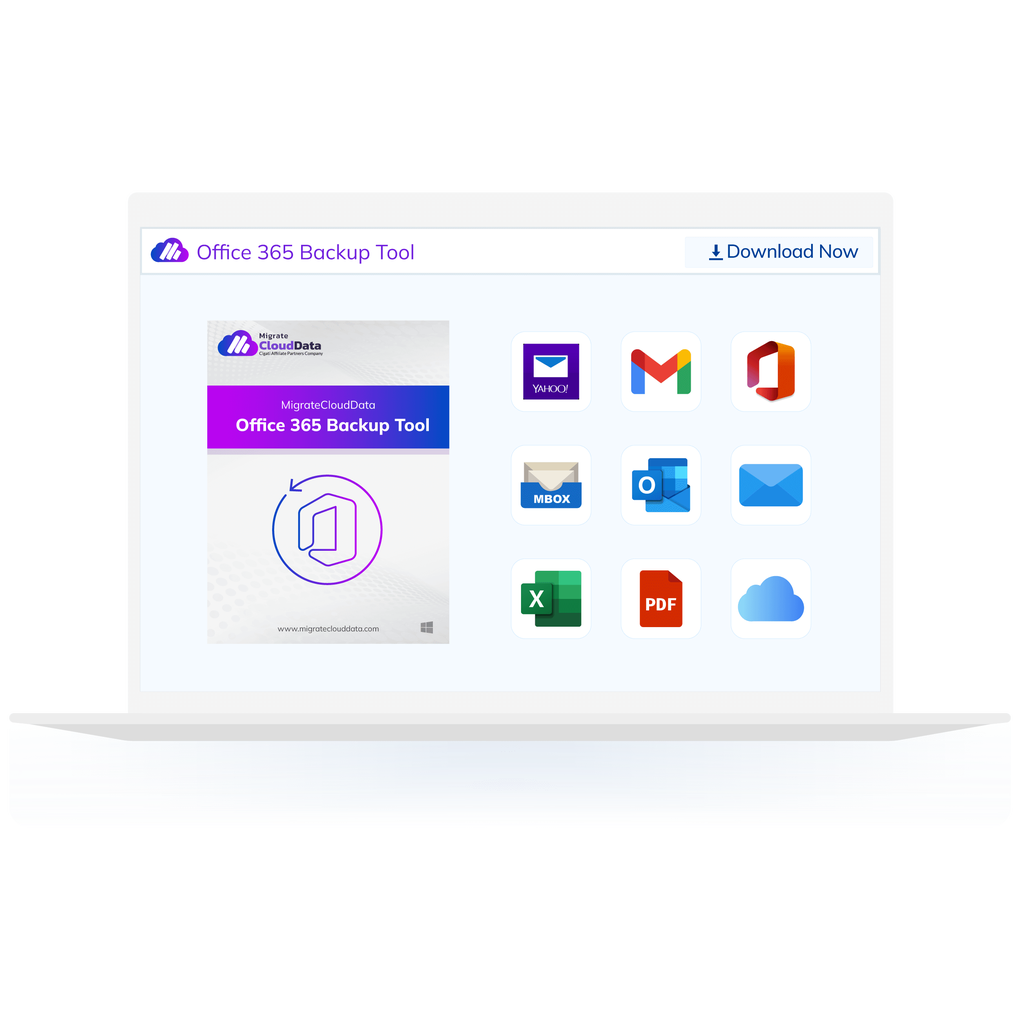
It supports a wide range of source and destination formats—including PST, PDF, MBOX, EML, and CSV—so you can create archival copies or move data to alternative platforms without data loss. Additionally, the tool handles advanced scenarios such as migrating In‑place Archives, Public Folders, and even entire tenant environments, making it a one‑stop shop for comprehensive Office 365 data transfer. By automating repetitive tasks, providing clear progress logs, and offering granular control over what gets migrated, the Office 365 Migration Tool helps organizations reduce downtime, avoid costly errors, and keep their email ecosystems running smoothly during transitions.
Key Features that Make It Stand Out
- Multi‑Format Export & Import: Seamlessly move mailboxes to and from PST, PDF, MBOX, EML, and CSV formats.
- Tenant‑to‑Tenant Migration: Transfer entire Office 365 tenants, including users, groups, and licenses, with minimal disruption.
- Cross‑Platform Compatibility: Migrate data to popular email services such as Gmail, Yahoo Mail, AOL, IMAP servers, and iCloud.
- Advanced Security: End‑to‑end encryption, role‑based access control, and audit logs ensure compliance with GDPR and other regulations.
- In‑Place Archive & Public Folder Support: Preserve historical data and shared resources without manual extraction.
- Intuitive Dashboard: Real‑time progress monitoring, error reporting, and customizable migration batches.
- Zero‑Downtime Scheduling: Plan migrations during off‑peak hours; the tool can pause and resume without data corruption.
- Free Trial & Low‑Cost Licensing: Start with a fully functional free version; premium features are available at competitive rates.
- Automatic Updates: The software checks for the latest security patches and feature enhancements each time it launches.
These features collectively address the most common pain points experienced during Office 365 migrations. By offering both breadth (multiple source/destination options) and depth (archive and public‑folder handling), the tool positions itself as a versatile ally for IT teams and solo administrators alike. The built‑in security mechanisms also mean you can trust the software with sensitive corporate communications, a critical consideration for regulated industries such as finance, healthcare, and education.
Installation, Usage Instructions, and System Compatibility
Step‑by‑Step Installation
Installing the Office 365 Migration Tool is straightforward. Begin by downloading the installer from the official website. The installer is available for Windows (64‑bit) and macOS (Intel & Apple Silicon).
Once the file is saved, run the executable (Windows) or the .dmg package (macOS) and follow the on‑screen prompts. The wizard checks for prerequisite components such as .NET Framework 4.8 (Windows) or the latest macOS security updates, installing them automatically if missing. After the brief installation, launch the application from the desktop shortcut or the Applications folder.
First‑Time Configuration
Upon first launch, you’ll be guided through a quick configuration wizard. Here you’ll:
- Enter your Office 365 admin credentials (OAuth authentication is recommended).
- Select the migration mode—Export, Import, or Tenant‑to‑Tenant.
- Choose source files (OST/PST) or target mailboxes.
- Define output formats and destination servers (Gmail, IMAP, iCloud, etc.).
- Set optional filters, such as date ranges or folder exclusions.
Running a Migration
After configuration, the main dashboard displays a clear list of migration jobs. Click “Create New Job,” select the prepared profile, and press “Start.” The tool then:
- Validates source files for corruption.
- Establishes a secure connection to the destination Office 365 tenant.
- Begins streaming data in batches, showing real‑time progress bars and estimated completion times.
- Logs any errors or warnings; you can pause, resume, or retry failed items without restarting the entire job.
Supported Operating Systems
The Office 365 Migration Tool runs natively on:
- Windows 10/11 (64‑bit) – Minimum version 1809.
- macOS 11 (Big Sur) and later – Supports both Intel and Apple Silicon architectures.
Final Verdict, Pros & Cons, and Frequently Asked Questions
Pros
- All‑in‑one solution for export, import, and tenant migrations.
- Robust security with encryption and audit logging.
- Supports a wide array of file formats and email services.
- User‑friendly interface suitable for non‑technical users.
- Free trial available; pricing is transparent and affordable.
Cons
- No native Linux client (requires workaround).
- Large migrations may need higher RAM (8 GB+ recommended).
- Advanced features (e.g., bulk tenant migration) are locked behind paid tiers.
Frequently Asked Questions
Can I migrate from Gmail to Office 365 using this tool?
Yes. The tool includes a built‑in Gmail connector that authenticates via OAuth and transfers all messages, labels, and attachments to the selected Office 365 mailbox.
Is the migration process secure?
All data is encrypted in transit using TLS 1.2 or higher, and the application stores credentials only in the Windows Credential Manager or macOS Keychain. Audit logs are generated for every migration step.
What are the system requirements?
Windows 10/11 (64‑bit) with at least 4 GB RAM and .NET 4.8, or macOS 11+ with 4 GB RAM. For large mailboxes (>50 GB) we recommend 8 GB RAM and a solid‑state drive for optimal performance.
Can I schedule migrations for off‑peak hours?
Yes. The scheduler lets you define start and end times, and the tool will automatically pause or resume the job based on your settings.
Is there a free version available?
A fully functional free trial is available for 30 days, allowing you to test all migration modes. After the trial, you can continue using the basic export/import features at no cost, while advanced tenant‑to‑tenant capabilities require a paid license.
Conclusion & Call to Action
In summary, the Office 365 Migration Tool delivers a reliable, secure, and easy‑to‑use platform for moving mailbox data across a variety of environments. Its extensive format support, tenant‑to‑tenant capabilities, and polished UI make it an excellent choice for both seasoned IT professionals and small‑business owners who lack deep technical expertise. While the absence of a native Linux client and the need for a paid license for large‑scale migrations are minor drawbacks, the overall value proposition remains strong. If you’re looking to streamline your Office 365 migration, protect your data, and minimize downtime, this tool is ready to help you achieve those goals.
Download the Office 365 Migration Tool now and start your secure migration journey today!
After testing the Office 365 Migration Tool across several migration scenarios—including a 200‑user tenant‑to‑tenant move and bulk PST imports—we found it to be highly dependable. The UI guided us through each step without confusion, and the security logs gave confidence that data was never exposed. Minor performance dips occurred with very large PST files, but the ability to pause and resume mitigated any impact. Overall, the tool earns a solid 4.5 out of 5 stars.







